
For this blog post, I set up two Custom Objects in HubSpot: Car and AutomotiveService. Car object is linked to Contacts, while AutomotiveService is associated with Cars.
I also created two test Contacts and assigned above Custom Objects to them. Both are named John.
Now, let's say that for every John I want to display a list of Cars and its related Automotive Services on a webpage. To make this happen, I created a standard HTML+HubL template.
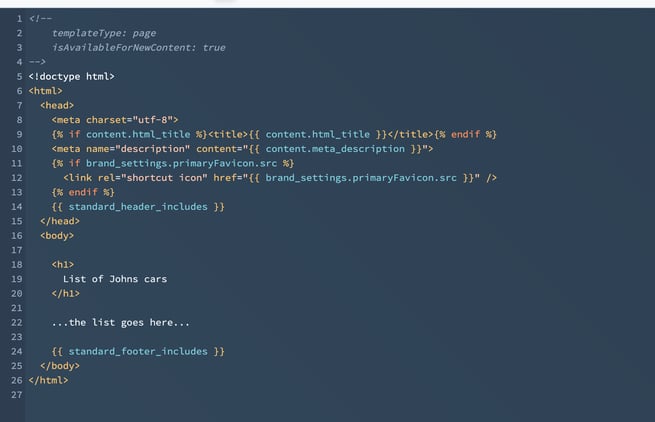
Simple template
Using HubL functions: crm_objects and crm_associations
To pull this data, we can use two HubL functions: crm_objects and crm_associations.
- First, we fetch Contacts.
- Then, for each Contact, we find their associated Car.
- Finally, we fetch the Car's related Automotive Services.
Let's add fetching contacts to our template using the crm_objects function:
<h1>
  List of Johns cars
</h1>
In preview it looks like this:

Preview of the template
We have a list of Contacts. Now, for every person we have to fetch associated Cars.
The crm_associations function does that, and its structure looks like this:
crm_associations(objectId, associationCategory, associationId, query, property, formatting)
First three parameters are mandatory:
- objectId: This is the Contact ID, which we get from the crm_objects function.
- associationCategory: Mostly we will use two of them:
HUBSPOT_DEFINED(used for default HubSpot associations like Contact-Company, Company-Deal, etc.) orUSER_DEFINED(for Custom Object relationships). - associationId: This is the tricky part. Finding the right ID for a custom association is not straightforward.
Finding Association ID value
HubSpot's documentation provides a list of default association IDs: HubSpot Associations Docs
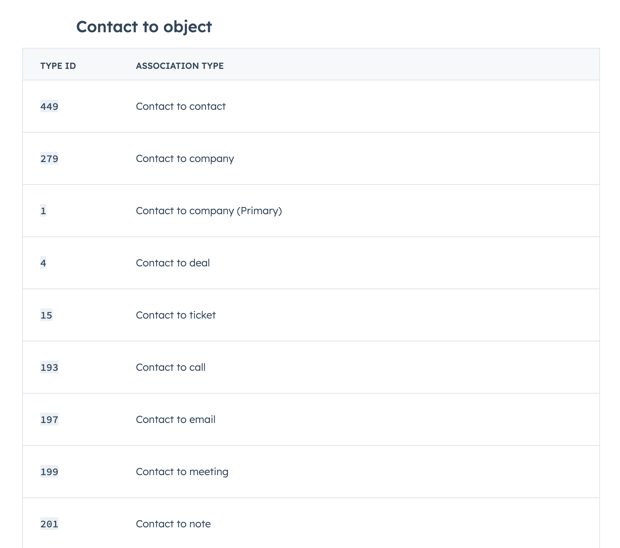
Association IDs in HubSpot
But what if you need the ID for a custom association? HubSpot does not show this anywhere. Fortunately, we can find it using the CRM API.
Step 1: Create a Private App
First, create a Private App in HubSpot with access to Contacts and Custom Object schemas.
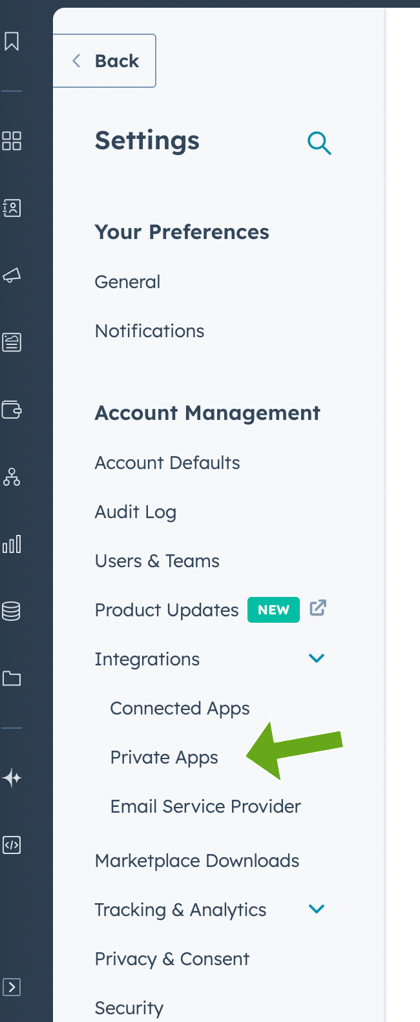
Private Apps in Settings
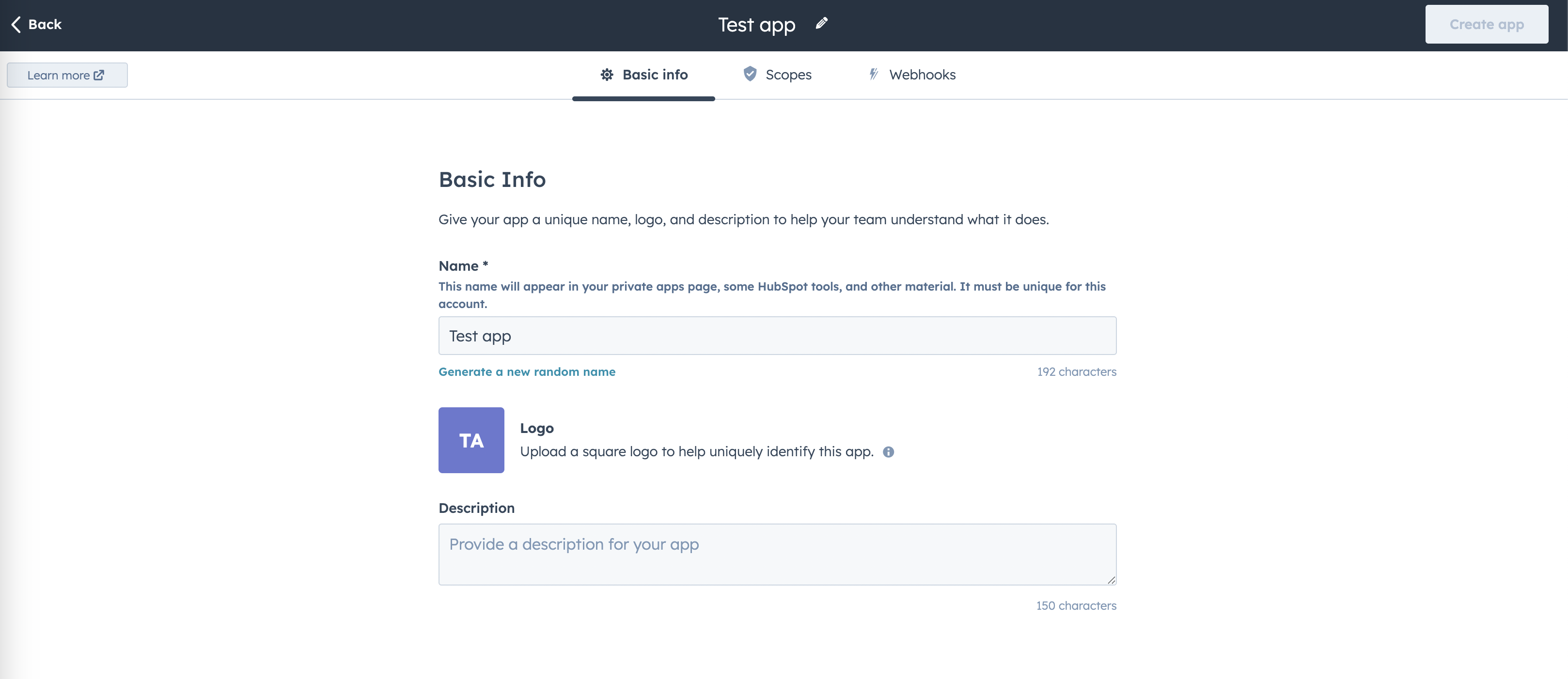
Private App configuration
Make sure it has the proper scope:
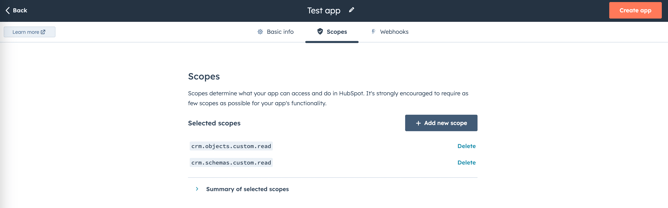
Private App scopes
Step 2: Use the Associations API
Once the app is set up, go to the Associations API and use the List request.
Step 3: Retrieve the Association ID
Now, enter the correct values. We are trying to get the association between Contact and Car, so we have to put proper parameters. In my case it looks like this:
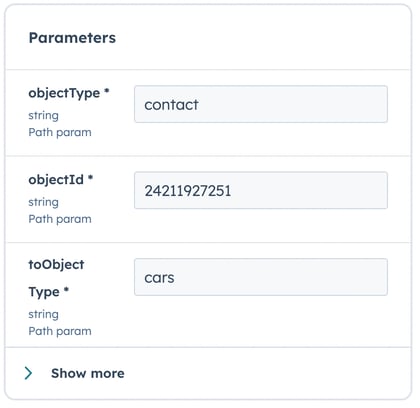
Example request parameters
ObjectId 24211927251 is one of my Contacts, which is associated to Car Custom Object. We focus on getting only the association ID, so we can use any Contact ID. It only needs to have a connection to the Car object.
After executing a test request, we get the response with association ID.
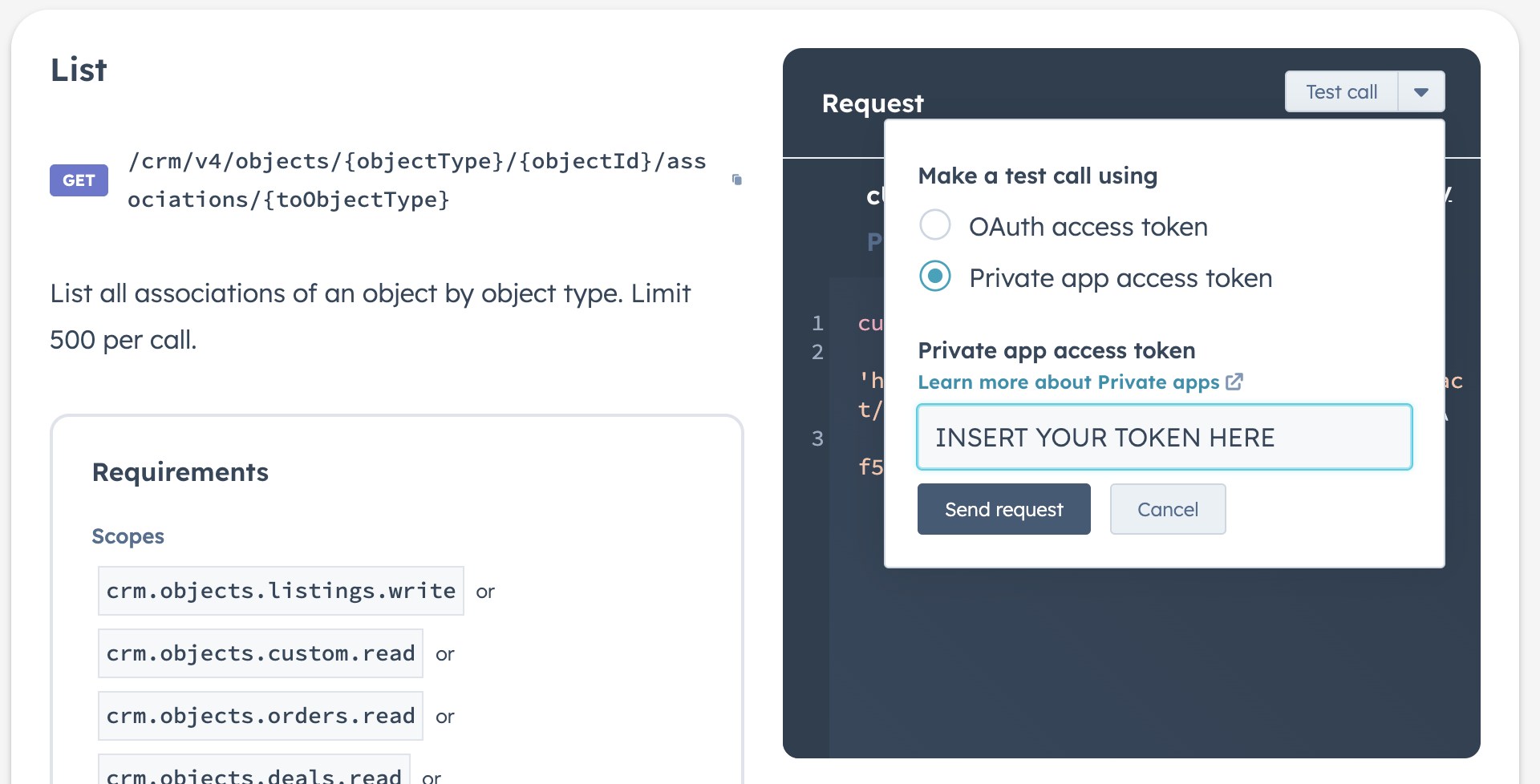
Executing the request
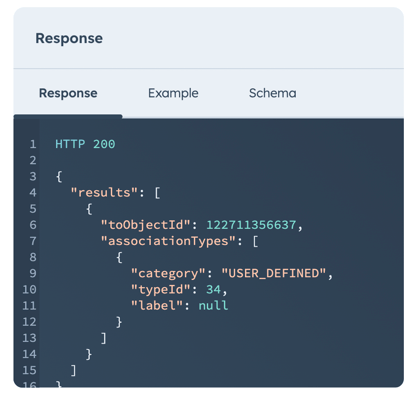
Response with association ID
Key typeId is the one we are looking for.
Having the ID, we can add the first association to our template. We will add fetching Contact-Car association by adding crm_association function with ID 34.
<h1>
  List of Johns cars
</h1>
After adding that, we can see the cars on the list:
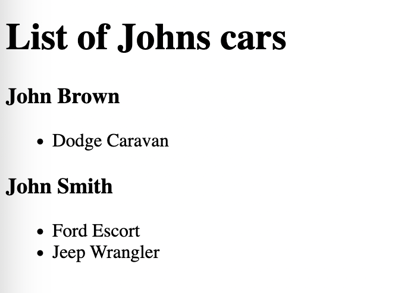
Updated list of cars
Now, we can recreate the same steps for fetching association ID between Cars and AutomotiveServices Custom Objects. Let's change the params and make the test request.
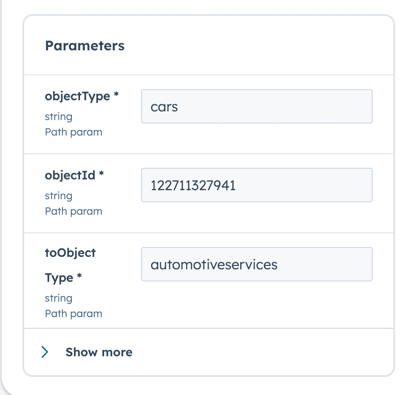
Parameters for fetching relation between Cars and AutomotiveServices
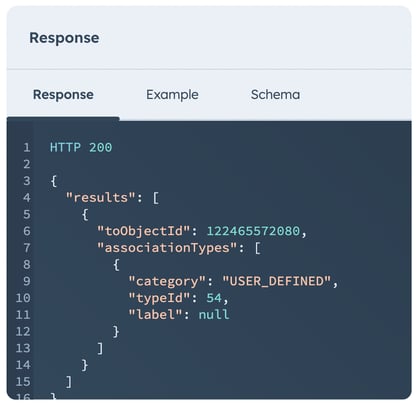
Response from the test request
Our typeId is 54 for this one.
We already have all necessary information now, let's finish the code in the template:
<h1>
  List of Johns cars
</h1>
It gives us the following result:
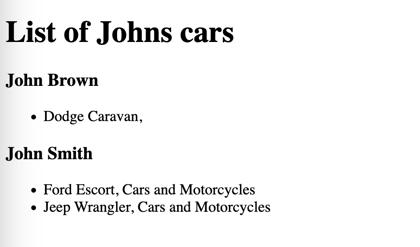
Finished list of Contacts with Cars and AutomotiveServices
With this technique you can always get the right IDs for your custom associations to use in your template.
Take care.